
Controls
Storybook Controls 提供了一个图形用户界面,无需编码即可动态交互组件的参数。使用控件面板编辑故事的输入,并实时查看结果。这是探索组件和测试不同状态的绝佳方式。
控件不需要对您的组件进行任何修改。控件的故事
- 方便。根据 React/Vue/Angular/等组件自动生成控件。
- 可移植。在文档、测试甚至设计中重用您的交互式故事。
- 丰富。自定义控件和交互式数据以满足您的确切需求。
要使用控件,您需要使用 args 编写您的故事。Storybook 将根据您的 args 和它对您的组件的推断自动生成 UI 控件。尽管如此,您仍然可以使用 argTypes 进一步配置控件,如下所示。
如果您有旧的 pre-Storybook 6 风格的故事,请查看 args 和控件迁移指南,了解如何为 args 转换现有故事。
选择控件类型
默认情况下,Storybook 会根据每个 arg 的初始值选择一个控件。这对于特定的 arg 类型(例如 boolean 或 string)效果很好。要启用它们,请将 component 注释添加到故事文件默认导出中,它将用于推断控件并使用 react-docgen(一个用于 React 组件的文档生成器,还包括对 TypeScript 的一流支持)为您的组件自动生成匹配的 argTypes。
// Replace your-framework with the framework you are using, e.g. react-vite, nextjs, nextjs-vite, etc.
import type { Meta } from '@storybook/your-framework';

import { Button } from './Button';

const meta = {
  component: Button,
} satisfies Meta<typeof Button>;

export default meta;
例如,假设您的故事中有一个 variant arg,它应该是 primary 或 secondary
// Replace your-framework with the framework you are using, e.g. react-vite, nextjs, vue3-vite, etc.
import type { Meta, StoryObj } from '@storybook/your-framework';

import { Button } from './Button';

const meta = {
  component: Button,
} satisfies Meta<typeof Button>;

export default meta;
type Story = StoryObj<typeof meta>;

export const Primary: Story = {
  args: {
    variant: 'primary',
  },
};
默认情况下,Storybook 将为 variant arg 呈现一个自由文本输入框
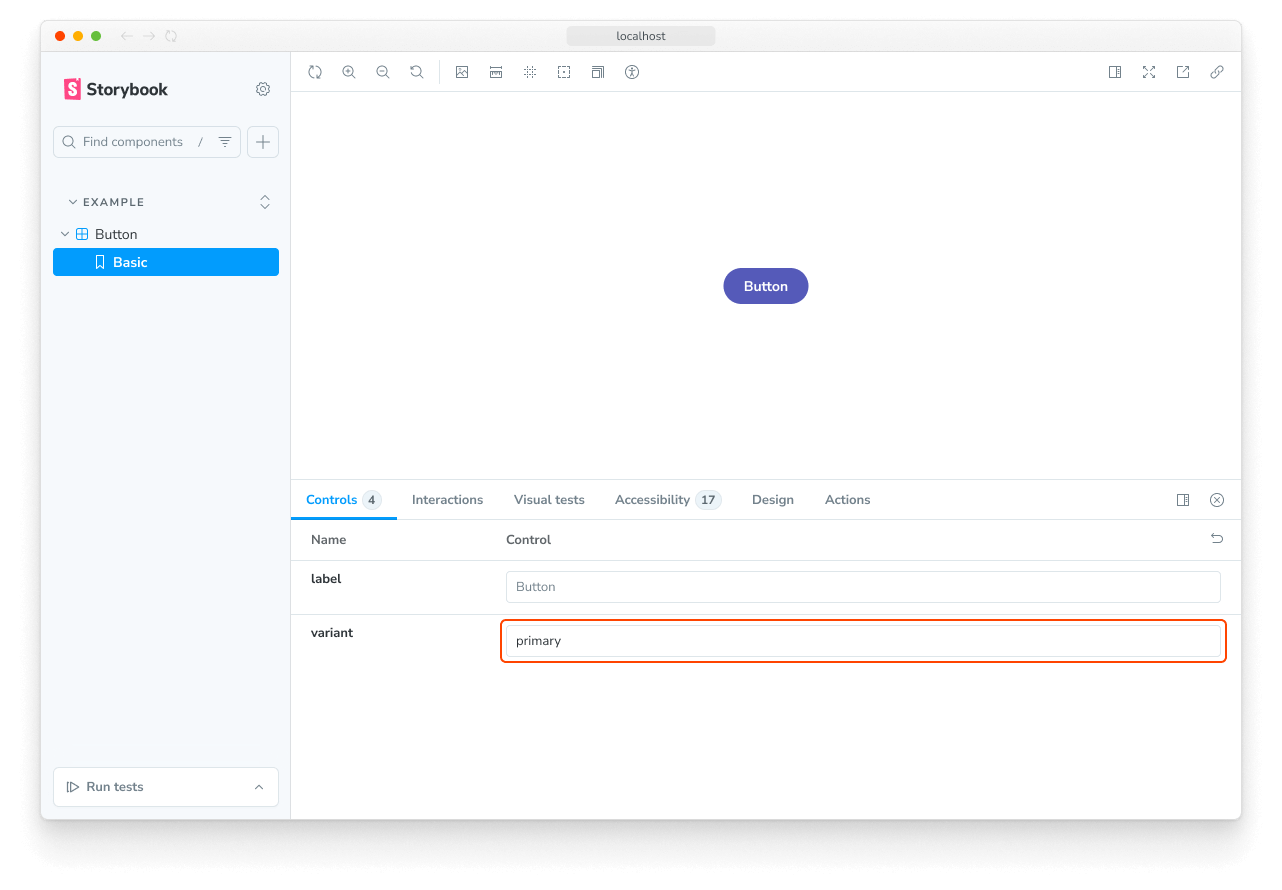
只要您在自动生成的文本控件中输入有效字符串即可。尽管如此,对于我们的场景来说,它不是最佳 UI,因为组件只接受 primary 或 secondary 作为变体。让我们用 Storybook 的单选按钮控件替换它。
我们可以通过为 variant 属性声明自定义 argType 来指定使用哪些控件。ArgTypes 编码了 args 的基本元数据,例如 args 的名称、描述和默认值。这些由 Storybook Docs 自动填充。
ArgTypes 还可以包含任意注释,用户可以覆盖这些注释。由于 variant 是一个组件属性,让我们将该注释放在默认导出上。
// Replace your-framework with the framework you are using, e.g. react-vite, nextjs, vue3-vite, etc.
import type { Meta } from '@storybook/your-framework';

import { Button } from './Button';

const meta = {
  component: Button,
  argTypes: {
    variant: {
      options: ['primary', 'secondary'],
      control: { type: 'radio' },
    },
  },
} satisfies Meta<typeof Button>;

export default meta;ArgTypes 是一个强大的功能,可用于自定义故事的控件。有关更多信息,请参阅关于使用 argTypes 注释自定义控件的文档。
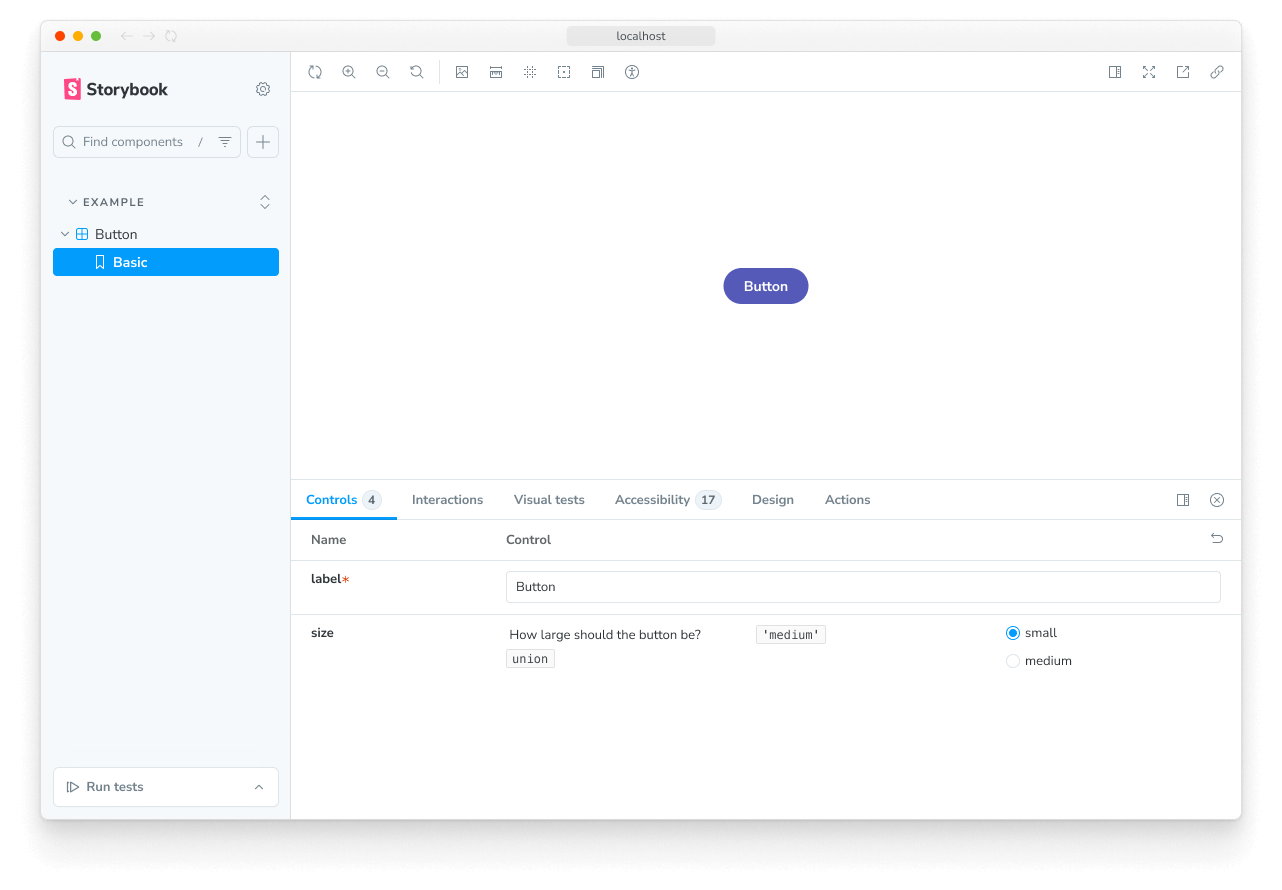
这会将输入框替换为单选按钮组,以获得更直观的体验。
自定义控件类型匹配器
控件可以通过 正则表达式 从 arg 的名称自动推断,但目前仅适用于颜色选择器和日期选择器控件。如果您使用 Storybook CLI 设置了项目,它应该会在 .storybook/preview.js|ts 中自动创建以下默认设置
| 控件 | 默认正则表达式 | 描述 |
|---|---|---|
| color | /(background|color)$/i | 将为匹配的 arg 显示颜色选择器 UI |
| date | /Date$/ | 将为匹配的 arg 显示日期选择器 UI |
如果您没有使用 CLI 设置配置,或者想定义自己的模式,请使用 controls 参数中的 matchers 属性
// Replace your-framework with the framework you are using, e.g. react-vite, nextjs, vue3-vite, etc.
import type { Preview } from '@storybook/your-framework';

const preview: Preview = {
  parameters: {
    controls: {
      matchers: {
        color: /(background|color)$/i,
        date: /Date$/,
      },
    },
  },
};

export default preview;
完全自定义的 args
到目前为止,我们只使用了基于我们正在编写故事的组件的自动生成的控件。如果我们正在编写 复杂的故事,我们可能希望为不属于组件的 args 添加控件。例如,您可以使用 footer arg 来填充子组件
// Replace your-framework with the framework you are using, e.g. react-vite, nextjs, nextjs-vite, etc.
import type { Meta, StoryObj } from '@storybook/your-framework';

import { Page } from './Page';

type PagePropsAndCustomArgs = React.ComponentProps<typeof Page> & { footer?: string };

const meta = {
  component: Page,
  render: ({ footer, ...args }) => (
    <Page {...args}>
      <footer>{footer}</footer>
    </Page>
  ),
} satisfies Meta<PagePropsAndCustomArgs>;
export default meta;

type Story = StoryObj<typeof meta>;

export const CustomFooter = {
  args: {
    footer: 'Built with Storybook',
  },
} satisfies Story;
默认情况下,Storybook 会为所有 args 添加控件,这些 args
-
如果您的框架支持,它会从组件定义中推断出来 。
-
出现在故事的 args 列表中。
使用 argTypes,您可以更改每个控件的显示和行为。
处理复杂值
当处理非原始值时,您会发现一些限制。最明显的问题是并非所有值都可以表示为 URL 中 args 参数的一部分,从而失去了共享此类状态和深度链接的能力。除此之外,像 JSX 这样的复杂值无法在管理器(例如控件面板)和预览(您的故事)之间同步。
一种处理此问题的方法是使用原始值(例如字符串)作为 arg 值,并添加一个自定义的 render 函数,在渲染之前将其转换为其复杂对应物。这不是最好的方法(如下所示),但肯定是最灵活的。
// Replace your-framework with the framework you are using, e.g. react-vite, nextjs, nextjs-vite, etc.
import type { Meta, StoryObj } from '@storybook/your-framework';

import { YourComponent } from './your-component';

const meta = {
  component: YourComponent,
  //👇 Creates specific argTypes with options
  argTypes: {
    propertyA: {
      options: ['Item One', 'Item Two', 'Item Three'],
      control: { type: 'select' }, // Automatically inferred when 'options' is defined
    },
    propertyB: {
      options: ['Another Item One', 'Another Item Two', 'Another Item Three'],
    },
  },
} satisfies Meta<typeof YourComponent>;

export default meta;
type Story = StoryObj<typeof meta>;

const someFunction = (valuePropertyA, valuePropertyB) => {
  // Do some logic here
};

export const ExampleStory: Story = {
  render: (args) => {
    const { propertyA, propertyB } = args;
    //👇 Assigns the function result to a variable
    const someFunctionResult = someFunction(propertyA, propertyB);

    return <YourComponent {...args} someProperty={someFunctionResult} />;
  },
  args: {
    propertyA: 'Item One',
    propertyB: 'Another Item One',
  },
};
除非您需要函数灵活性,否则在渲染之前将原始值映射到复杂值的更简单方法是定义一个 mapping;此外,您还可以指定 control.labels 来配置您的复选框、单选按钮或选择输入框的自定义标签。
// Replace your-framework with the framework you are using, e.g. react-vite, nextjs, vue3-vite, etc.
import type { Meta } from '@storybook/your-framework';

import { Button } from './Button';

import { ArrowUp, ArrowDown, ArrowLeft, ArrowRight } from './icons';

const arrows = { ArrowUp, ArrowDown, ArrowLeft, ArrowRight };

const meta = {
  component: Button,
  argTypes: {
    arrow: {
      options: Object.keys(arrows), // An array of serializable values
      mapping: arrows, // Maps serializable option values to complex arg values
      control: {
        type: 'select', // Type 'select' is automatically inferred when 'options' is defined
        labels: {
          // 'labels' maps option values to string labels
          ArrowUp: 'Up',
          ArrowDown: 'Down',
          ArrowLeft: 'Left',
          ArrowRight: 'Right',
        },
      },
    },
  },
} satisfies Meta<typeof Button>;

export default meta;请注意,mapping 和 control.labels 不必详尽无遗。如果当前选定的选项未列出,则按原样使用。
从控件创建和编辑故事
您可以直接从控件面板创建或编辑故事。
创建新故事
打开故事的控件面板并调整控件的值。然后将更改保存为新故事。
如果您正在处理一个尚无故事的组件,可以单击侧边栏中的 ➕ 按钮来搜索您的组件并为您创建一个基本故事。
编辑故事
您还可以更新控件的值,然后将更改保存到故事中。故事文件的代码将为您更新。
禁用从 UI 创建和编辑故事
如果您不想允许从控件面板创建或编辑故事,可以通过在 .storybook/preview.js|ts 文件中的 parameters.controls 参数中将 disableSaveFromUI 参数设置为 true 来禁用此功能。
配置
控件可以通过两种方式配置
- 可以根据控件注释配置单个控件。
- 面板的外观可以通过参数配置。
注释
如上所示,您可以通过在组件或故事的 argTypes 字段中添加“control”注释来配置单个控件。下面是一个包含所有可用控件的精简示例和表格。
| 数据类型 | 控件 | 描述 |
|---|---|---|
| boolean | boolean | 提供一个切换开关以在可能的状态之间切换。argTypes: { active: { control: 'boolean' }} |
| number | number | 提供一个数字输入框,包含所有可能值的范围。argTypes: { even: { control: { type: 'number', min:1, max:30, step: 2 } }} |
range | 提供一个范围滑块组件,包含所有可能的值。argTypes: { odd: { control: { type: 'range', min: 1, max: 30, step: 3 } }} | |
| object | object | 提供一个基于 JSON 的编辑器组件来处理对象的值。 还允许以原始模式进行编辑。 argTypes: { user: { control: 'object' }} |
| array | object | 提供一个基于 JSON 的编辑器组件来处理数组的值。 还允许以原始模式进行编辑。 argTypes: { odd: { control: 'object' }} |
file | 提供一个文件输入组件,返回 URL 数组。 可以进一步自定义以接受特定文件类型。 argTypes: { avatar: { control: { type: 'file', accept: '.png' } }} | |
| enum | radio | 根据可用选项提供一组单选按钮。argTypes: { contact: { control: 'radio', options: ['email', 'phone', 'mail'] }} |
inline-radio | 根据可用选项提供一组内联单选按钮。argTypes: { contact: { control: 'inline-radio', options: ['email', 'phone', 'mail'] }} | |
check | 提供一组复选框组件用于选择多个选项。argTypes: { contact: { control: 'check', options: ['email', 'phone', 'mail'] }} | |
inline-check | 提供一组内联复选框组件用于选择多个选项。argTypes: { contact: { control: 'inline-check', options: ['email', 'phone', 'mail'] }} | |
select | 提供一个下拉列表组件来处理单个值选择。 argTypes: { age: { control: 'select', options: [20, 30, 40, 50] }} | |
multi-select | 提供一个允许选择多个值的下拉列表。 argTypes: { countries: { control: 'multi-select', options: ['USA', 'Canada', 'Mexico'] }} | |
| string | text | 提供一个自由文本输入框。argTypes: { label: { control: 'text' }} |
color | 提供一个颜色选择器组件来处理颜色值。 可以额外配置以包含一组预设颜色。 argTypes: { color: { control: { type: 'color', presetColors: ['red', 'green']} }} | |
date | 提供一个日期选择器组件来处理日期选择。 argTypes: { startDate: { control: 'date' }} |
当值更改时,date 控件会将日期转换为 UNIX 时间戳。这是一个已知的限制,将在将来的版本中修复。如果您需要表示实际日期,则需要更新故事的实现并将该值转换为日期对象。
// Replace your-framework with the framework you are using, e.g. react-vite, nextjs, vue3-vite, etc.
import type { Meta } from '@storybook/your-framework';

import { Gizmo } from './Gizmo';

const meta = {
  component: Gizmo,
  argTypes: {
    canRotate: {
      control: 'boolean',
    },
    width: {
      control: { type: 'number', min: 400, max: 1200, step: 50 },
    },
    height: {
      control: { type: 'range', min: 200, max: 1500, step: 50 },
    },
    rawData: {
      control: 'object',
    },
    coordinates: {
      control: 'object',
    },
    texture: {
      control: {
        type: 'file',
        accept: '.png',
      },
    },
    position: {
      control: 'radio',
      options: ['left', 'right', 'center'],
    },
    rotationAxis: {
      control: 'check',
      options: ['x', 'y', 'z'],
    },
    scaling: {
      control: 'select',
      options: [10, 50, 75, 100, 200],
    },
    label: {
      control: 'text',
    },
    meshColors: {
      control: {
        type: 'color',
        presetColors: ['#ff0000', '#00ff00', '#0000ff'],
      },
    },
    revisionDate: {
      control: 'date',
    },
  },
} satisfies Meta<typeof Gizmo>;

export default meta;数字数据类型将默认为 number 控件,除非提供其他配置。
参数
Controls 支持以下配置 参数,可以全局或按故事进行配置
显示每个属性的完整文档
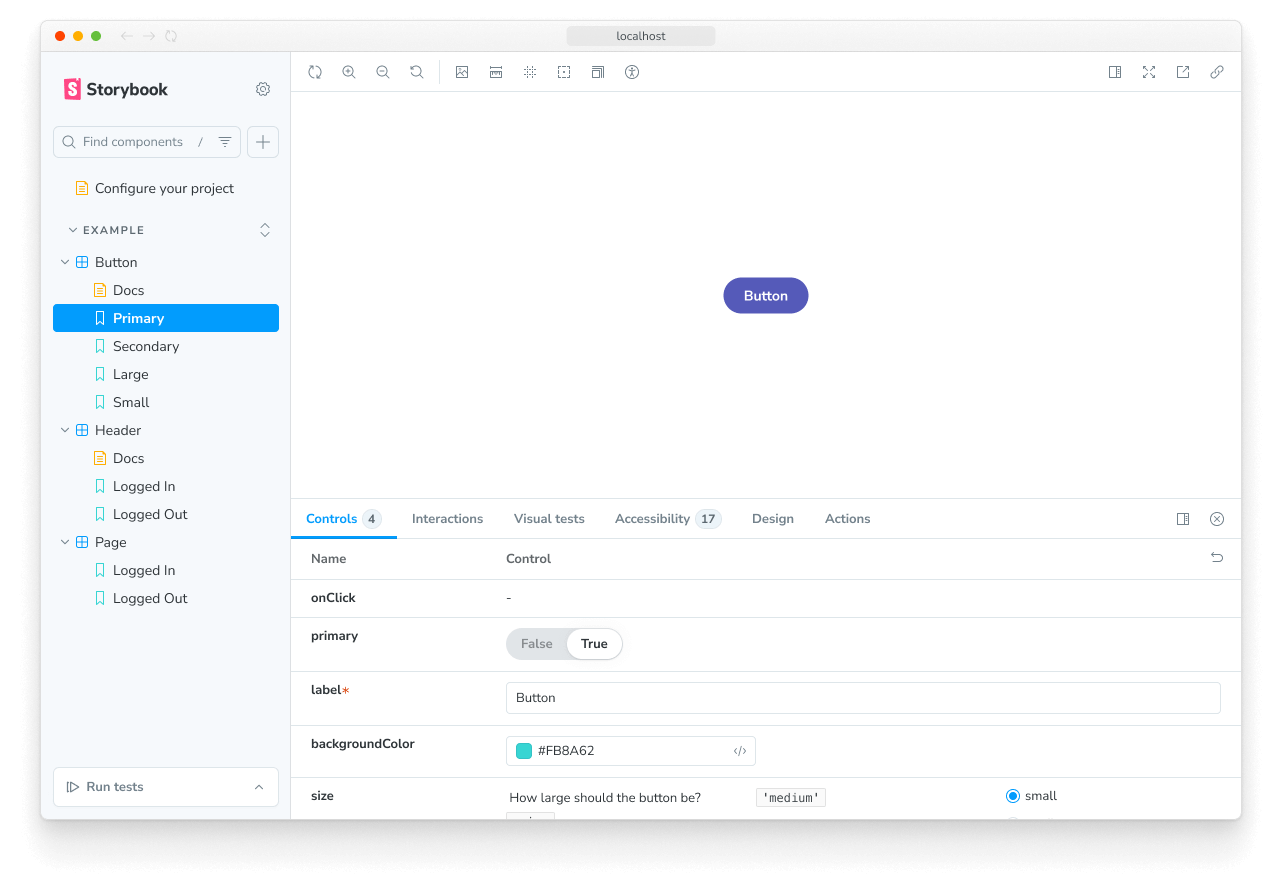
由于 Controls 构建在与 Storybook Docs 相同的引擎上,因此它也可以在控件旁边显示属性文档,使用展开的参数(默认为 false)。这意味着您可以在控件面板中嵌入完整的 Controls 文档块。描述和默认值的渲染可以像文档块一样自定义。
要全局启用展开模式,请将以下内容添加到 .storybook/preview.js|ts
// Replace your-framework with the framework you are using, e.g. react-vite, nextjs, vue3-vite, etc.
import type { Preview } from '@storybook/your-framework';

const preview: Preview = {
  parameters: {
    controls: { expanded: true },
  },
};

export default preview;
最终的 UI 看起来是这样的
指定初始预设颜色样本
对于 color 控件,您可以在 argTypes 中的 control 上,或在 controls 命名空间下的参数中指定 presetColors 数组。
// Replace your-framework with the framework you are using, e.g. react-vite, nextjs, vue3-vite, etc.
import type { Preview } from '@storybook/your-framework';

const preview: Preview = {
  parameters: {
    controls: {
      presetColors: [{ color: '#ff4785', title: 'Coral' }, 'rgba(0, 159, 183, 1)', '#fe4a49'],
    },
  },
};

export default preview;
颜色预设可以定义为具有 color 和 title 的对象,或者一个简单的 CSS 颜色字符串。这些将作为色板在颜色选择器中可用。当您将鼠标悬停在颜色样本上时,您将能够看到它的标题。如果没有指定,它将默认为最近的 CSS 颜色名称。
过滤控件
在特定情况下,您可能需要仅在控件面板中显示有限数量的控件,或者排除某些控件。
为了实现这一点,您可以使用 controls 参数中的可选 include 和 exclude 配置字段,您可以将它们定义为字符串数组或正则表达式。
考虑以下故事片段
// Replace your-framework with the framework you are using, e.g. react-vite, nextjs, vue3-vite, etc.
import type { Meta, StoryObj } from '@storybook/your-framework';

import { YourComponent } from './YourComponent';

const meta = {
  component: YourComponent,
} satisfies Meta<typeof YourComponent>;

export default meta;
type Story = StoryObj<typeof meta>;

export const ArrayInclude: Story = {
  parameters: {
    controls: { include: ['foo', 'bar'] },
  },
};

export const RegexInclude: Story = {
  parameters: {
    controls: { include: /^hello*/ },
  },
};

export const ArrayExclude: Story = {
  parameters: {
    controls: { exclude: ['foo', 'bar'] },
  },
};

export const RegexExclude: Story = {
  parameters: {
    controls: { exclude: /^hello*/ },
  },
};
排序控件
默认情况下,控件未排序,并使用处理 args 数据的顺序(none)。此外,您还可以按 arg 名称按字母顺序(alpha)或将必需的 args 放在前面(requiredFirst)来排序它们。
考虑以下片段强制将必需的 args 放在前面
// Replace your-framework with the framework you are using, e.g. react-vite, nextjs, vue3-vite, etc.
import type { Meta } from '@storybook/your-framework';

import { YourComponent } from './YourComponent';

const meta = {
  component: YourComponent,
  parameters: { controls: { sort: 'requiredFirst' } },
} satisfies Meta<typeof YourComponent>;

export default meta;
禁用对特定属性的控件
除了这里已记录的功能外,还可以为单个属性禁用控件。
假设您想关闭组件故事中名为 foo 的属性的控件。以下示例说明了如何操作
// Replace your-framework with the framework you are using, e.g. react-vite, nextjs, vue3-vite, etc.
import type { Meta } from '@storybook/your-framework';

import { YourComponent } from './YourComponent';

const meta = {
  component: YourComponent,
  argTypes: {
    // foo is the property we want to remove from the UI
    foo: {
      table: {
        disable: true,
      },
    },
  },
} satisfies Meta<typeof YourComponent>;

export default meta;
导致 Storybook UI 发生以下更改
前面的示例还从表格中删除了 prop 文档。在某些情况下,这没关系。但有时您可能希望在没有控件的情况下渲染 prop 文档。以下示例说明了如何操作
// Replace your-framework with the framework you are using, e.g. react-vite, nextjs, vue3-vite, etc.
import type { Meta } from '@storybook/your-framework';

import { YourComponent } from './YourComponent';

const meta = {
  component: YourComponent,
  argTypes: {
    // foo is the property we want to remove from the UI
    foo: {
      control: false,
    },
  },
} satisfies Meta<typeof YourComponent>;

export default meta;与其他 Storybook 属性(如 decorators)一样,您可以将相同的模式应用于故事级别,以进行更细粒度的处理。
条件控件
在某些情况下,根据另一个控件的值有条件地排除控件会很有用。控件使用 if 支持这些用例的基本版本,它可以接受简单的查询对象来确定是否包含控件。
考虑一个“高级”设置集合,只有当用户切换“高级”切换开关时才可见。
// Replace your-framework with the framework you are using, e.g. react-vite, nextjs, vue3-vite, etc.
import type { Meta } from '@storybook/your-framework';

import { Button } from './Button';

const meta = {
  component: Button,
  argTypes: {
    label: { control: 'text' }, // Always shows the control
    advanced: { control: 'boolean' },
    // Only enabled if advanced is true
    margin: { control: 'number', if: { arg: 'advanced' } },
    padding: { control: 'number', if: { arg: 'advanced' } },
    cornerRadius: { control: 'number', if: { arg: 'advanced' } },
  },
} satisfies Meta<typeof Button>;

export default meta;
或者考虑一个约束,如果用户设置了一个控件值,那么用户设置另一个值就没有意义了。
// Replace your-framework with the framework you are using, e.g. react-vite, nextjs, vue3-vite, etc.
import type { Meta } from '@storybook/your-framework';

import { Button } from './Button';

const meta = {
  component: Button,
  argTypes: {
    // Button can be passed a label or an image, not both
    label: {
      control: 'text',
      if: { arg: 'image', truthy: false },
    },
    image: {
      control: { type: 'select', options: ['foo.jpg', 'bar.jpg'] },
      if: { arg: 'label', truthy: false },
    },
  },
} satisfies Meta<typeof Button>;

export default meta;
查询对象必须包含 arg 或 global 目标
| field | type | 意义 |
|---|---|---|
| arg | string | 要测试的 arg 的 ID。 |
| global | string | 要测试的全局的 ID。 |
它还可以包含最多一个以下运算符
| operator | type | 意义 |
|---|---|---|
| truthy | boolean | 目标值是否为真值? |
| exists | boolean | 目标值是否已定义? |
| eq | any | 目标值是否等于提供的值? |
| neq | any | 目标值是否不等于提供的值? |
如果未提供运算符,则等同于 { truthy: true }。
故障排除
控件未更新自动生成文档中的故事
如果您通过 inline 配置选项关闭了故事的内联渲染,您将遇到一个问题,即关联的控件不会更新文档页面中的故事。这是当前实现的一个已知限制,将在未来的版本中得到解决。
API
参数
此功能为 Storybook 贡献了以下 参数,位于 controls 命名空间下
disable
类型:boolean
禁用此功能的行为。如果您希望禁用整个 Storybook 的此功能,则应 在主配置文件中执行此操作。
此参数对于允许在更具体的级别进行覆盖非常有用。例如,如果此参数在项目级别设置为 `true`,则可以通过在 meta(组件)或 story 级别将其设置为 `false` 来重新启用它。
exclude
类型:string[] | RegExp
指定要从控件面板中排除的属性。任何名称匹配正则表达式或包含在数组中的属性都将被排除。请参阅上面的 用法示例。
expanded
类型:boolean
在控件面板中显示每个属性的完整文档,包括描述和默认值。请参阅上面的 用法示例。
include
类型:string[] | RegExp
指定要包含在控件面板中的属性。任何名称不匹配正则表达式或未包含在数组中的属性都将被排除。请参阅上面的 用法示例。
presetColors
类型:(string | { color: string; title?: string })[]
为颜色选择器控件指定预设颜色样本。颜色值可以是任何有效的 CSS 颜色。请参阅上面的 用法示例。
sort
类型:'none' | 'alpha' | 'requiredFirst'
默认:'none'
指定控件的排序方式。
- none:未排序,按 args 数据处理顺序显示
- alpha:按字母顺序排序,按 arg 名称排序
- requiredFirst:与
alpha相同,必需的 arg 类型显示在前面
disableSaveFromUI
类型:boolean
默认:false
禁用从控件面板创建或编辑故事的能力。