
如何编写 Story
Story(故事)捕捉了 UI 组件的渲染状态。它是一个带有注解的对象,用于描述组件在给定参数集下的行为和外观。
Storybook 在谈论 React 的 props、Vue 的 props、Angular 的 @Input 以及其他类似概念时,会使用通用术语 arguments(简称为 args)。
故事放在哪里
组件的故事定义在一个与组件文件同目录下的故事文件中。故事文件仅用于开发,不会包含在你的生产打包中。在文件系统中,它看起来大致如下:
components/
├─ Button/
│  ├─ Button.js | ts | jsx | tsx | vue | svelte
│  ├─ Button.stories.js | ts | jsx | tsx | svelte
组件故事格式 (Component Story Format)
我们根据 组件故事格式 (CSF) 定义故事,这是一种基于 ES6 模块的标准,易于编写且可在工具之间移植。
默认导出
默认导出元数据控制 Storybook 如何列出你的故事,并提供插件使用信息。例如,以下是故事文件 Button.stories.js|ts 的默认导出:
// Replace your-framework with the framework you are using, e.g. react-vite, nextjs, nextjs-vite, etc.
import type { Meta } from '@storybook/your-framework';

import { Button } from './Button';

const meta = {
  component: Button,
} satisfies Meta<typeof Button>;

export default meta;从 Storybook 7.0 版本开始,故事标题作为构建过程的一部分进行静态分析。默认导出必须包含一个可以静态读取的 title 属性,或者一个可以从中计算出自动标题的 component 属性。使用 id 属性来自定义你的故事 URL 也必须是静态可读的。
定义故事
使用 CSF 文件的命名导出函数来定义你的组件故事。我们建议对故事导出使用 UpperCamelCase。以下是如何渲染“primary”状态的 Button 并导出一个名为 Primary 的故事。
// Replace your-framework with the framework you are using, e.g. react-vite, nextjs, nextjs-vite, etc.
import type { Meta, StoryObj } from '@storybook/your-framework';

import { Button } from './Button';

const meta = {
  component: Button,
} satisfies Meta<typeof Button>;

export default meta;
type Story = StoryObj<typeof meta>;

export const Primary: Story = {
  args: {
    primary: true,
    label: 'Button',
  },
};
自定义渲染
默认情况下,故事会渲染 meta(默认导出)中定义的组件,并将传递给它的 args。如果你需要渲染其他内容,可以为 render 属性提供一个函数,该函数返回所需的输出。
例如,如果你想将 Button 渲染到 Alert 中,你可以定义一个自定义渲染函数,如下所示:
// Replace your-framework with the framework you are using, e.g. react-vite, nextjs, nextjs-vite, etc.
import { Meta, StoryObj } from '@storybook/your-framework';

import { Alert } from './Alert';
import { Button } from './Button';

const meta = {
  component: Button,
} satisfies Meta<typeof Button>;
export default meta;

type Story = StoryObj<typeof meta>;

export const PrimaryInAlert: Story = {
  args: {
    primary: true,
    label: 'Button',
  },
  render: (args) => (
    <Alert>
      Alert text
      <Button {...args} />
    </Alert>
  ),
};请注意,render 函数如何将 args 展开到 Button 组件上。这确保了诸如 Controls 之类的功能能够按预期工作,允许你在 Storybook UI 中动态更改 Button 的属性。
你可以通过在 meta 级别应用同一个渲染函数来跨故事复用它。
// Replace your-framework with the framework you are using, e.g. react-vite, nextjs, nextjs-vite, etc.
import { Meta, StoryObj } from '@storybook/your-framework';

import { Alert } from './Alert';
import { Button } from './Button';

const meta = {
  component: Button,
  render: (args) => (
    <Alert>
      Alert text
      <Button {...args} />
    </Alert>
  ),
} satisfies Meta<typeof Button>;
export default meta;

type Story = StoryObj<typeof meta>;

export const DefaultInAlert: Story = {
  args: {
    label: 'Button',
  },
};

export const PrimaryInAlert: Story = {
  args: {
    primary: true,
    label: 'Button',
  },
};
在 meta 级别定义的任何内容都可以被 story 级别覆盖,因此如果你需要,仍然可以自定义单个故事的渲染。
最后,render 函数接收第二个 context 参数,其中包含故事的所有其他详细信息,包括 parameters、globals 等。
使用 React Hooks
React Hooks 是用于以更精简的方式创建组件的便捷辅助方法。如果你需要,可以在创建组件故事时使用它们,但应将其视为高级用法。在编写自己的故事时,我们强烈建议尽可能使用 args。例如,这里有一个使用 React Hooks 来更改按钮状态的故事:
import React, { useState } from 'react';

// Replace your-framework with the framework you are using, e.g. react-vite, nextjs, nextjs-vite, etc.
import type { Meta, StoryObj } from '@storybook/your-framework';

import { Button } from './Button';

const meta = {
  component: Button,
} satisfies Meta<typeof Button>;

export default meta;
type Story = StoryObj<typeof meta>;

const ButtonWithHooks = () => {
  // Sets the hooks for both the label and primary props
  const [value, setValue] = useState('Secondary');
  const [isPrimary, setIsPrimary] = useState(false);

  // Sets a click handler to change the label's value
  const handleOnChange = () => {
    if (!isPrimary) {
      setIsPrimary(true);
      setValue('Primary');
    }
  };
  return <Button primary={isPrimary} onClick={handleOnChange} label={value} />;
};

export const Primary = {
  render: () => <ButtonWithHooks />,
} satisfies Story;
重命名故事
默认情况下,Storybook 使用故事导出的名称作为故事名称的基础。但是,你可以通过向故事对象添加 name 属性来定制故事的名称。当你想要为故事提供更具描述性或用户友好的名称时,这很有用。
// Replace your-framework with the framework you are using, e.g. react-vite, nextjs, nextjs-vite, etc.
import type { Meta, StoryObj } from '@storybook/your-framework';

import { Button } from './Button';

const meta = {
  component: Button,
} satisfies Meta<typeof Button>;

export default meta;
type Story = StoryObj<typeof meta>;

export const Primary: Story = {
  // 👇 Rename this story
  name: 'I am the primary',
  args: {
    label: 'Button',
    primary: true,
  },
};
你的故事现在将在侧边栏显示为给定的文本。
如何编写故事
Story(故事)是一个描述如何渲染组件的对象。每个组件可以有多个故事,并且这些故事可以相互构建。例如,我们可以根据上面提供的 Primary 故事添加 Secondary 和 Tertiary 故事。
// Replace your-framework with the framework you are using, e.g. react-vite, nextjs, nextjs-vite, etc.
import type { Meta, StoryObj } from '@storybook/your-framework';

import { Button } from './Button';

const meta = {
  component: Button,
} satisfies Meta<typeof Button>;

export default meta;
type Story = StoryObj<typeof meta>;

export const Primary: Story = {
  args: {
    backgroundColor: '#ff0',
    label: 'Button',
  },
};

export const Secondary: Story = {
  args: {
    ...Primary.args,
    label: '😄👍😍💯',
  },
};

export const Tertiary: Story = {
  args: {
    ...Primary.args,
    label: '📚📕📈🤓',
  },
};
更妙的是,你可以导入 args 来复用于编写其他组件的故事,这在你构建复合组件时非常有用。例如,如果我们创建一个 ButtonGroup 故事,我们可能会混合使用其子组件 Button 的两个故事。
// Replace your-framework with the framework you are using, e.g. react-vite, nextjs, nextjs-vite, etc.
import type { Meta, StoryObj } from '@storybook/your-framework';

import { ButtonGroup } from '../ButtonGroup';

//👇 Imports the Button stories
import * as ButtonStories from './Button.stories';

const meta = {
  component: ButtonGroup,
} satisfies Meta<typeof ButtonGroup>;

export default meta;
type Story = StoryObj<typeof meta>;

export const Pair: Story = {
  args: {
    buttons: [{ ...ButtonStories.Primary.args }, { ...ButtonStories.Secondary.args }],
    orientation: 'horizontal',
  },
};
当 Button 的签名发生变化时,你只需要更改 Button 的故事以反映新模式,ButtonGroup 的故事将自动更新。这种模式允许你在组件层次结构中重用数据定义,使你的故事更易于维护。
这还不是全部!故事函数中的每个 args 都可以通过 Storybook 的 Controls 面板进行实时编辑。这意味着你的团队可以在 Storybook 中动态更改组件,以进行压力测试和发现边缘情况。
你还可以使用 Controls 面板在调整控件值后编辑或保存新故事。
插件可以增强 args。例如,Actions 会自动检测哪些 args 是回调函数,并为其添加一个日志记录函数。这样,交互(如点击)就会被记录在 actions 面板中。
使用 play 函数
Storybook 的 play 函数是一个方便的辅助方法,用于测试需要用户交互才能进行的组件场景。它们是渲染你的故事后执行的小代码片段。例如,假设你想验证一个表单组件,你可以编写以下故事,使用 play 函数来检查组件在填入信息时如何响应。
// Replace your-framework with the framework you are using, e.g. react-vite, nextjs, nextjs-vite, etc.
import type { Meta, StoryObj } from '@storybook/your-framework';

import { expect } from 'storybook/test';

import { LoginForm } from './LoginForm';

const meta = {
  component: LoginForm,
} satisfies Meta<typeof LoginForm>;
export default meta;

type Story = StoryObj<typeof meta>;

export const EmptyForm: Story = {};

export const FilledForm: Story = {
  play: async ({ canvas, userEvent }) => {
    // 👇 Simulate interactions with the component
    await userEvent.type(canvas.getByTestId('email'), 'email@provider.com');

    await userEvent.type(canvas.getByTestId('password'), 'a-random-password');

    // See https://storybook.org.cn/docs/essentials/actions#automatically-matching-args to learn how to setup logging in the Actions panel
    await userEvent.click(canvas.getByRole('button'));

    // 👇 Assert DOM structure
    await expect(
      canvas.getByText(
        'Everything is perfect. Your account is ready and we should probably get you started!',
      ),
    ).toBeInTheDocument();
  },
};
你可以在 interactions panel 中与故事的 play 函数进行交互和调试。
使用参数
参数是 Storybook 定义故事静态元数据的方法。故事的参数可用于在故事或故事组的级别为各种插件提供配置。
例如,假设你想将你的 Button 组件与应用程序中其他组件不同的背景集进行测试。你可以添加一个组件级别的 backgrounds 参数:
// Replace your-framework with the framework you are using, e.g. react-vite, nextjs, vue3-vite, etc.
import type { Meta } from '@storybook/your-framework';

import { Button } from './Button';

const meta = {
  component: Button,
  //👇 Creates specific parameters at the component level
  parameters: {
    backgrounds: {
      options: {},
    },
  },
} satisfies Meta<typeof Button>;

export default meta;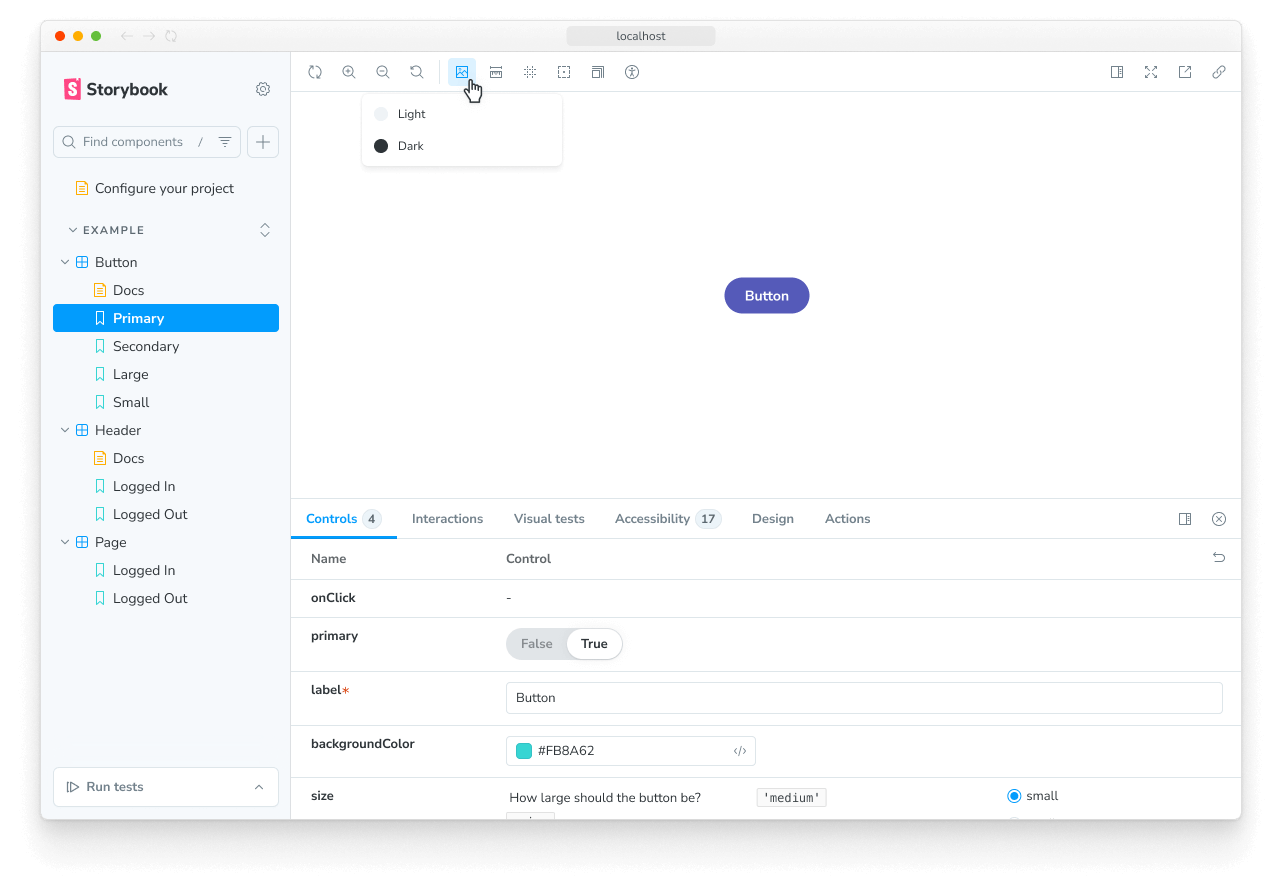
此参数将在选择 Button 故事时指示 backgrounds 功能重新配置自身。大多数功能和插件通过基于参数的 API 进行配置,并且可以在 全局、组件 和 故事 级别进行影响。
使用装饰器
Decorators(装饰器)是一种机制,用于在渲染故事时将组件包装在任意标记中。组件通常根据它们渲染的“位置”进行创建。你的样式可能需要主题或布局包装器,或者你的 UI 可能需要特定的上下文或数据提供者。
一个简单的例子是为组件的故事添加内边距。通过使用一个将故事包装在带有内边距的 div 中的装饰器来实现,如下所示:
// Replace your-framework with the framework you are using, e.g. react-vite, nextjs, nextjs-vite, etc.
import type { Meta, StoryObj } from '@storybook/your-framework';

import { Button } from './Button';

const meta = {
  component: Button,
  decorators: [
    (Story) => (
      <div style={{ margin: '3em' }}>
        {/* 👇 Decorators in Storybook also accept a function. Replace <Story/> with Story() to enable it  */}
        <Story />
      </div>
    ),
  ],
} satisfies Meta<typeof Button>;

export default meta;装饰器可以更复杂,并且通常由插件提供。你也可以在故事、组件和全局级别配置装饰器。
两个或多个组件的故事
有时你可能有两个或多个协同工作的组件。例如,如果你有一个父组件 List,它可能需要子组件 ListItem。
// Replace your-framework with the framework you are using, e.g. react-vite, nextjs, nextjs-vite, etc.
import type { Meta, StoryObj } from '@storybook/your-framework';

import { List } from './List';

const meta = {
  component: List,
} satisfies Meta<typeof List>;

export default meta;
type Story = StoryObj<typeof meta>;

// Always an empty list, not super interesting
export const Empty: Story = {};在这种情况下,通过自定义渲染来输出具有不同数量 ListItem 子项的 List 组件是很有意义的。
// Replace your-framework with the framework you are using, e.g. react-vite, nextjs, nextjs-vite, etc.
import type { Meta, StoryObj } from '@storybook/your-framework';

import { List } from './List';
import { ListItem } from './ListItem';

const meta = {
  component: List,
} satisfies Meta<typeof List>;

export default meta;
type Story = StoryObj<typeof meta>;

export const Empty: Story = {};

/*
 *👇 Render functions are a framework specific feature to allow you control on how the component renders.
 * See https://storybook.org.cn/docs/api/csf
 * to learn how to use render functions.
 */
export const OneItem: Story = {
  render: (args) => (
    <List {...args}>
      <ListItem />
    </List>
  ),
};

export const ManyItems: Story = {
  render: (args) => (
    <List {...args}>
      <ListItem />
      <ListItem />
      <ListItem />
    </List>
  ),
};
你还可以重用子组件 ListItem 中的故事数据来构建你的 List 组件。这样更容易维护,因为你不必在多个地方更新它。
import * as React from 'react';

// Replace your-framework with the framework you are using, e.g. react-vite, nextjs, nextjs-vite, etc.
import type { Meta, StoryObj } from '@storybook/your-framework';

import { List } from './List';
import { ListItem } from './ListItem';

//👇 We're importing the necessary stories from ListItem
import { Selected, Unselected } from './ListItem.stories';

const meta = {
  component: List,
} satisfies Meta<typeof List>;

export default meta;
type Story = StoryObj<typeof meta>;

export const ManyItems: Story = {
  render: (args) => (
    <List {...args}>
      <ListItem {...Selected.args} />
      <ListItem {...Unselected.args} />
      <ListItem {...Unselected.args} />
    </List>
  ),
};请注意,以这种方式编写故事存在缺点,因为你无法充分利用 args 机制和组合 args 来构建更复杂的复合组件。有关更多讨论,请参阅 多组件故事 工作流程文档。